
CCTV Camera With Battery Backup and SIM Card: Staying Online in a Power Cut
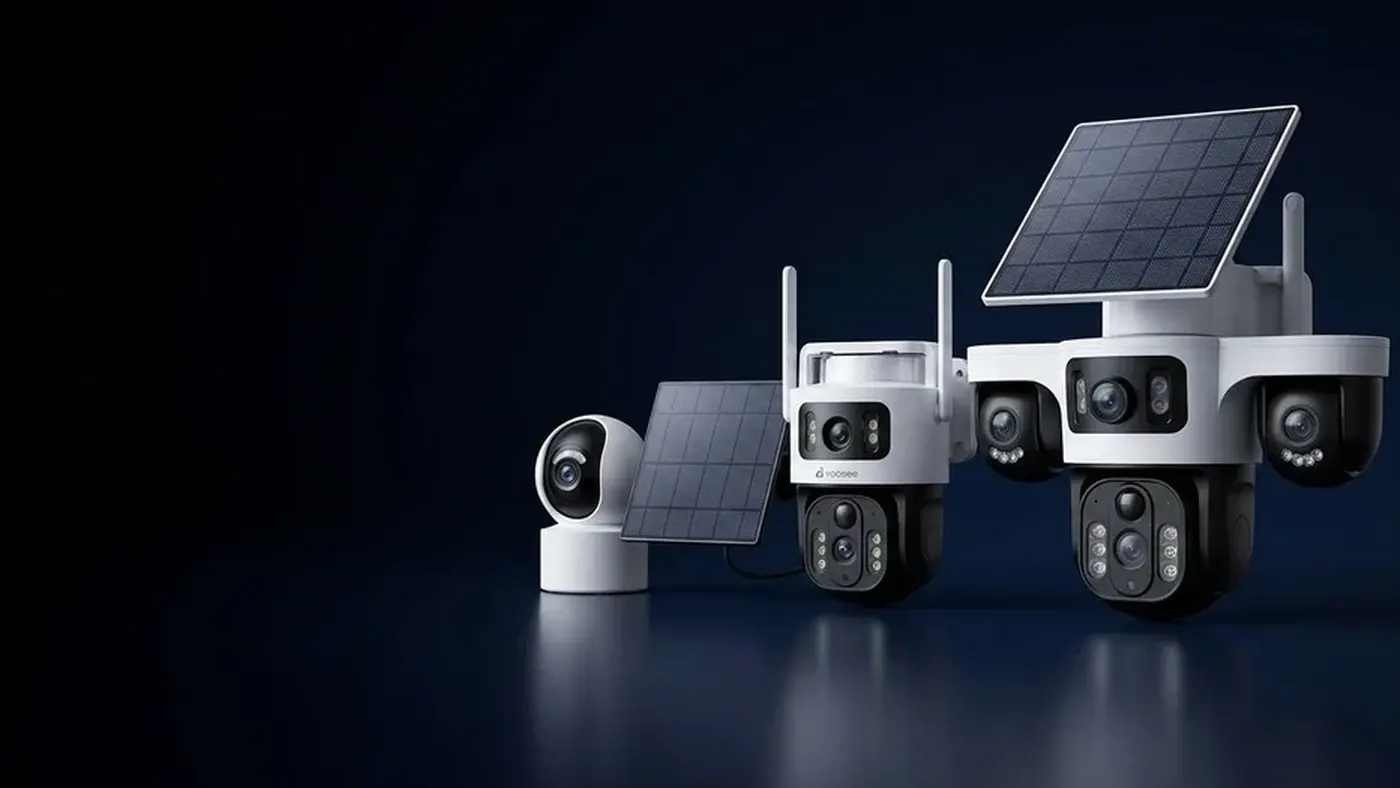
A camera only keeps watching during a power cut if everything it depends on keeps running too: the camera itself, the place it stores video, and the link that carries alerts to your phone. A cctv camera with battery backup and sim card solves all three in one box, because it runs from its own battery and talks over the mobile network instead of your home router. If you would rather keep the WiFi cameras you already own, the alternative is a small backup power supply that covers both the camera and the router, not just the camera.
This guide explains what actually goes dark when the power fails, how to choose between the two routes, how to set each one up, and how to prove it works before you need it.
What goes dark when the power fails
Most people assume a power cut means "the camera turns off". In a typical home or shop it is more complicated, and the order things fail in tells you what you need to back up.
Walk through your setup and list every box with a plug:
- The camera. A mains-powered WiFi camera switches off instantly unless its adapter is on backup power.
- The router. Even if the camera stays on, it has nothing to talk to once the router is dark. The app then shows the camera as offline.
- The broadband box. Many homes have a separate fibre or line box next to the router. It needs power too, and it is easy to forget.
- Anything in between. A WiFi extender in the hallway, or a recorder in a cupboard, is one more device that has to stay on.
- The street. In a wider outage, the equipment that feeds your broadband line may lose power as well. Your own backup cannot fix that.
That last point is why the two routes below behave so differently. A backup supply at home keeps your devices running but still relies on your broadband line. A battery cctv camera with a SIM card skips your router and broadband entirely and only needs a working mobile tower within range. Mobile sites often have some backup power of their own, but how long it lasts varies by network and area, so a long regional outage can still take mobile data down.
Route 1: keep your WiFi camera running with a UPS
If your cameras already work well on WiFi and outages in your area are short, backing up power is usually the simplest change.
Step 1: back up the router, not only the camera
A UPS (uninterruptible power supply) is a battery box that sits between the wall socket and your devices and takes over the moment mains power drops. Put the router, the broadband box and the camera adapter on it. Backing up the camera alone gives you a camera that keeps recording to its memory card but cannot send you a single alert.
If the camera is far from the router, you may need two small units: one by the router and one by the camera. Small DC backup units made for routers also exist; check that the output voltage and plug match each device exactly.
Step 2: read the labels before you buy
Every adapter has a label with its output voltage and current. That tells you two things: what the backup unit must supply, and roughly how much it will draw.
Here is a worked example so you can do the sum for your own equipment. Suppose the camera adapter label reads 12V 1A and the router adapter reads 12V 1.5A. Multiplying volts by amps gives the maximum each can draw: 12 watts and 18 watts. Real use is usually lower than the label, but planning with the label figures gives you a safe margin. Add them up (30 watts in this example) and check two things on the UPS: its rated output must exceed that total, and its battery energy in watt-hours, divided by the total, gives a rough upper limit on runtime. Inverter losses and battery age make real runtime shorter, so treat the result as a ceiling and confirm it with the test at the end of this guide. Your labels will show different figures, so always use your own.
Step 3: set the camera to record locally
Insert a memory card if your model supports one and turn on recording in the app. On most models this sits under the camera's settings, in a section called something like Record or Storage, although menu names differ slightly between app versions. Local recording means that even if the broadband line dies, the camera still captures what happens, and you can watch it back once the connection returns.
Route 2: a battery 4G camera with its own SIM
A battery powered cctv camera with a 4G modem does not care about your router, your broadband line or your wall socket. It carries its own rechargeable battery and connects to the mobile network much like a phone does.
How it saves power
Battery cameras usually do not stream all day. They sleep, wake when motion is detected, record a clip, send an alert and go back to sleep. That is what makes the battery last, and it is also the main trade-off: on most battery models you get event clips rather than a continuous recording. Check the product listing for your exact model to see which recording modes it supports.
Some units add a solar panel to top up the battery. That combination is covered in detail in running a camera with no WiFi and no power. For a temporary or remote location, this guide to cameras on building sites shows how the same setup works when there is no mains supply at all.
Step 1: prepare the SIM card in a phone first
When a new 4G camera will not connect, the SIM is a common cause. Before the SIM goes anywhere near the camera, put it in a phone and check:
- It has mobile data on its plan and an active balance.
- The PIN lock is switched off. The camera cannot type a PIN.
- Data works by opening a web page with WiFi switched off.
- You know the APN your network uses, in case the camera does not detect it automatically.
Choosing the right SIM for a 4G camera goes through size, plan type and APN settings step by step.
Step 2: charge fully and check signal at the mounting spot
Charge the battery fully before the first install. Then stand at the exact place the camera will be mounted and check signal bars on a phone using the same network. A spot that shows weak signal will drain the battery faster, because the modem works harder and retries failed uploads.
Step 3: add it in the app
Insert the SIM with the camera powered off, switch it on, and add it in the app using the method in your manual. Many 4G models are added by scanning a QR code on the camera or in the box rather than through WiFi pairing; follow whatever your manual describes. Then insert a memory card if supported, set the detection zone to cover only what matters, and keep clip length short.
Which route fits your situation
Ask three questions:
- How long are your outages? Short, occasional cuts favour a UPS. Long or frequent ones favour a battery camera that recharges between events.
- Does your broadband survive an outage? If your internet always drops whenever the area loses power, a UPS keeps the camera recording but not connected. A SIM-based camera stays reachable.
- Do you need continuous recording? A mains camera on a UPS can keep recording around the clock. A battery camera usually records events only.
If you are still deciding between connection types in general, the WiFi versus 4G comparison looks at running costs and which sites suit each.
A common compromise is both: mains WiFi cameras indoors on a UPS, and one battery 4G camera covering the gate or the shop entrance as an independent backup.
Test it with a deliberate power cut
Do not wait for a real outage to find out what happens. Pick a quiet time and run a planned test.
- Switch off the main breaker or the circuit that feeds the router and cameras. If you are not comfortable working at the fuse board, ask a qualified electrician.
- Watch the app on mobile data with your phone off WiFi. Note whether each camera stays online, and how long it takes to come back if it drops.
- Walk in front of each camera and check that an alert arrives.
- Wait as long as a typical outage in your area, then check the UPS or camera battery level.
- Restore power and open playback. Confirm the clips from the outage are there.
Write down what happened. That note is your baseline: if the next test is worse, the UPS battery may be ageing or the camera battery may need replacing.
Symptoms and what they mean
- Camera offline the moment the power drops, but recordings exist afterwards. The camera stayed on but the router or broadband box did not. Put them on backup.
- Camera offline and no recordings from the outage. The camera itself lost power, or there is no memory card or recording is switched off.
- Battery 4G camera online but alerts arrive late. Weak signal or the camera taking time to wake. Check signal at the mount and narrow the detection zone.
- Battery camera drains much faster than expected. Too many triggers from trees, roads or headlights, or poor signal forcing retries. Fix the detection zone first.
- 4G camera shows signal but never connects. Usually APN, PIN lock or an expired data plan. Check the SIM in a phone again.
When to get help
Contact the seller or the support channel listed in your manual if a camera never shows up in the app, if the battery will not hold a charge, or if you are unsure whether your model supports local recording or continuous mode.
Get a qualified electrician for anything involving hardwired power, a new outdoor socket or the fuse board. For cameras on a roof, gutter or high wall, switch off power to that circuit first and do not work on a ladder alone.
Install or resell cameras?
If you fit cameras for homes and shops, ask every customer how long their power cuts usually last and whether their internet drops at the same time, before recommending a setup. Label which devices are on backup power, and run a deliberate breaker test with the customer present so they see what stays online. Leave them a short note listing the SIM provider, its renewal date and where the memory card sits. If you install or sell cameras and want to learn about supply and dealer terms, see the Yoosee dealer program.
Frequently asked questions
Will a battery CCTV camera record all day and night?
Usually not. Most battery models record short clips when motion is detected and sleep the rest of the time, which is how the battery lasts. If you need continuous recording, use a mains-powered camera on a backup supply, and check your model's listing for the recording modes it offers.
Do recordings on the memory card survive a power cut?
Clips that were already saved normally stay on the card when power is lost. The clip being written at the exact moment the power drops may be incomplete. Afterwards, open playback in the app to confirm what was kept.
Can I run a WiFi camera from a power bank during an outage?
Some small cameras that take a USB power lead can run from a power bank, but only if the voltage and connector match what the adapter supplies. Check the label on the original adapter first. Remember the camera still needs the router powered to send alerts.
Will I get a notification when the power goes out?
A mains camera that loses power simply goes offline, so the app may show it as offline rather than send a dedicated warning. A battery 4G camera does not depend on your mains supply, so it can keep sending motion alerts as long as its battery and the mobile network hold up. Whether a specific power-loss notice exists depends on the model and app version.
Can I put a SIM card in my existing WiFi camera?
Only if the camera was built with a 4G modem and a SIM slot. A WiFi-only camera has no way to use a SIM. Look for a SIM tray on the camera body or check the manual for your model.